
You spent hours filming, color grading, and editing a viral Instagram Reel. But the moment you publish, your punchy text hook is blocked by the Like and Share icons, your subtitles are smothered by your username, and your face is decapitated in the profile feed.
This happens to millions of creators every day. While Instagram Reels are filmed in standard 9:16 vertical resolution (1080 × 1920 pixels), Instagram plasters heavy, immovable UI elements across the screen: action buttons, caption text, sound titles, and header bars.
In this guide, you will master the exact Instagram Reels Safe Zones for 2026. You will learn the pixel-by-pixel dimensions of every danger zone, explore interactive visual examples featuring our Ukrainian model showcase, and discover how to set up automatic safe zone guides in CapCut, Premiere Pro, and DaVinci Resolve.
Quick Answer: What are Instagram Reels Safe Zones?
The safe zone is the designated central area of a 9:16 video where your visual content, subtitles, text hooks, and key subjects remain 100% visible and unblocked by Instagram's native interface overlays or aspect ratio crops.
| Zone Area | Pixel Buffer | Percentage | Obstructing UI Elements | Rule of Thumb |
|---|---|---|---|---|
| Top Header Zone | Top 220 px | 11.5% | Reels title, Camera icon, Audio track, Dynamic Island / Notch | Keep model hair/headroom clean; no title text |
| Bottom Caption Zone | Bottom 420 px | 21.8% | Profile avatar, @handle, Follow button, 2-line caption, "...more", Sound disc | Never place speech subtitles here |
| Right Action Rail | Right 220 px | 20.3% | Like heart, Comment bubble, Share arrow, Remix/Save, 3-dots menu | Center subtitles horizontally; don't stretch text edge-to-edge |
| True Text Safe Box | 1080 × 1280 px | 66.7% | Zero UI Obstructions | 100% safe for all hooks, stickers & subtitles |
| Profile Feed Crop | 1080 × 1350 px (4:5) | 70.3% | Crops 285px off top AND bottom in profile tab & home feed | Keep face & main action centered vertically |
Interactive Safe Zone Simulator (Try It Live)
Use the interactive phone simulator below to toggle between Instagram's live native UI, the technical safe zone grid overlay, and clean 9:16 footage. You can also switch between three different editorial looks of our Ukrainian model:
Anatomy of Reels UI: The 4 Dangerous Dead Zones
To understand why your Reels fail to communicate key points, you must examine how mobile devices layer graphics over your video. Instagram reserves more than 33% of the total 9:16 screen space for navigation and engagement mechanics:
The Top Navigation Header
Covers the top 11.5% of your screen. This area houses the "Reels" back button, the in-app camera shortcut, and system status bars (time, battery, Wi-Fi, and the camera notch or Dynamic Island).
The Bottom Caption & Audio Stack
Covers the bottom 21.8% of the video canvas. Instagram applies a high-contrast dark vignette gradient to render your profile photo, handle, follow button, caption, and scrolling audio track.
The Right Interaction Rail
The vertical column on the right side houses the Like heart, Comment bubble, DM Share paper plane, Bookmark button, and spinning audio disc. It covers 220px horizontally.
The 4:5 Profile Feed Truncation
When users scroll the main home feed or view your profile tab, your 9:16 Reel is automatically cropped to 4:5 (1080 × 1350 px). 285 pixels are clipped from both the top and bottom.
Visual Examples: Safe Framing with Ukrainian Model
To illustrate how professional creators balance aesthetic photography with safe zone compliance, examine these three real-world framing scenarios:
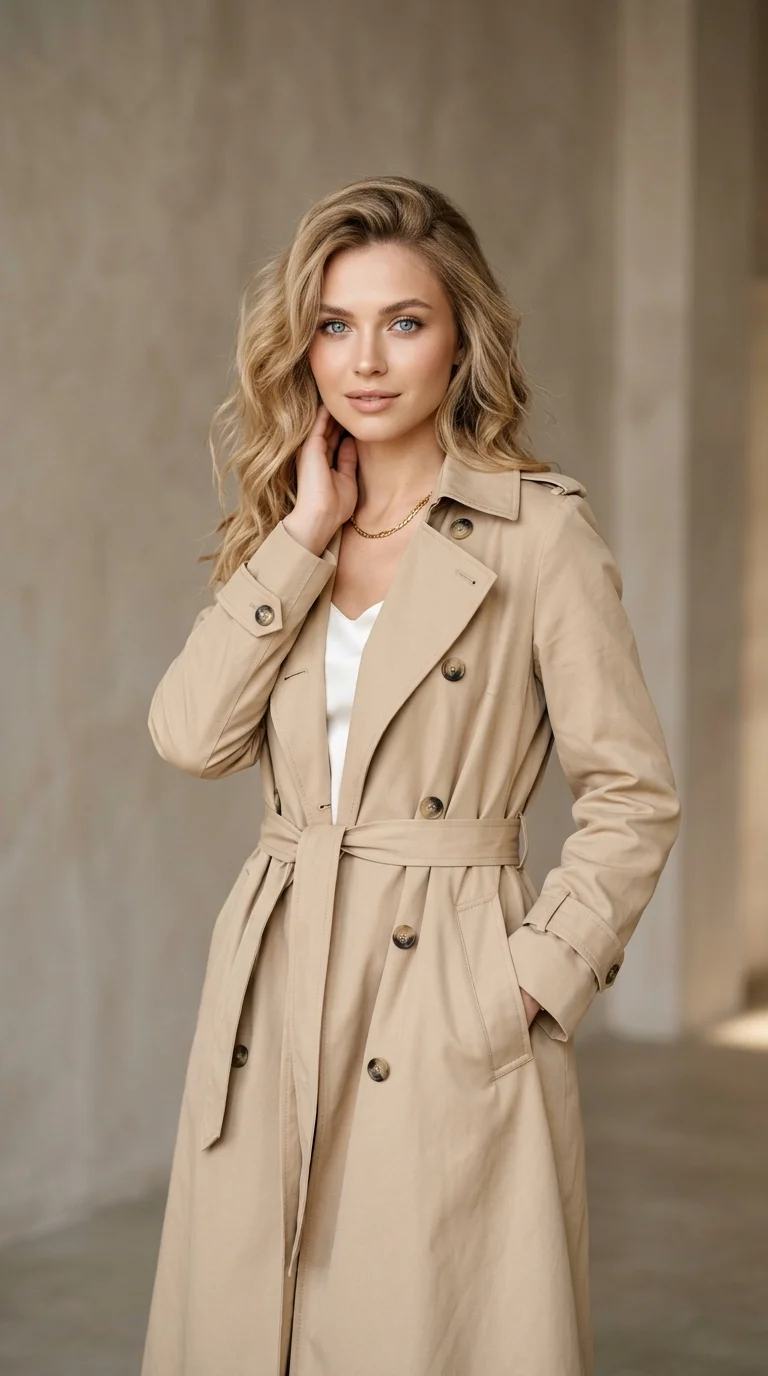
Scenario 1: Studio Editorial Portrait
Notice how our Ukrainian model's eyes sit at Y: 520px, well below the 220px top dead zone. Her hands and waist sit comfortably above the 420px bottom caption cutoff. When cropped to 4:5 on the profile feed, her face remains perfectly centered.
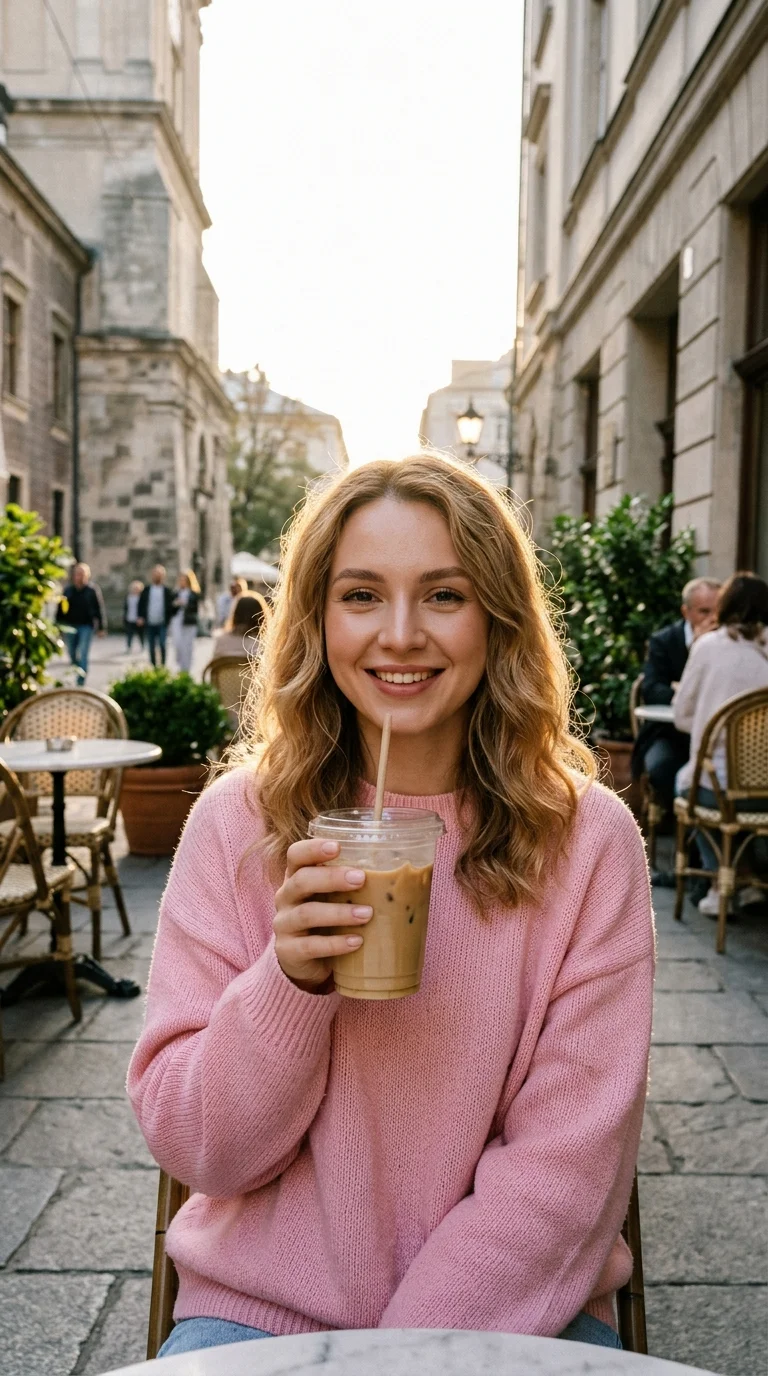
Scenario 2: Golden Hour Lifestyle
In candid lifestyle or cafe content, creators frequently add text hooks ("Best Cafes in Europe"). By placing text in the central green box over the model's sweater, the hook never collides with the right-hand Like/Share column.
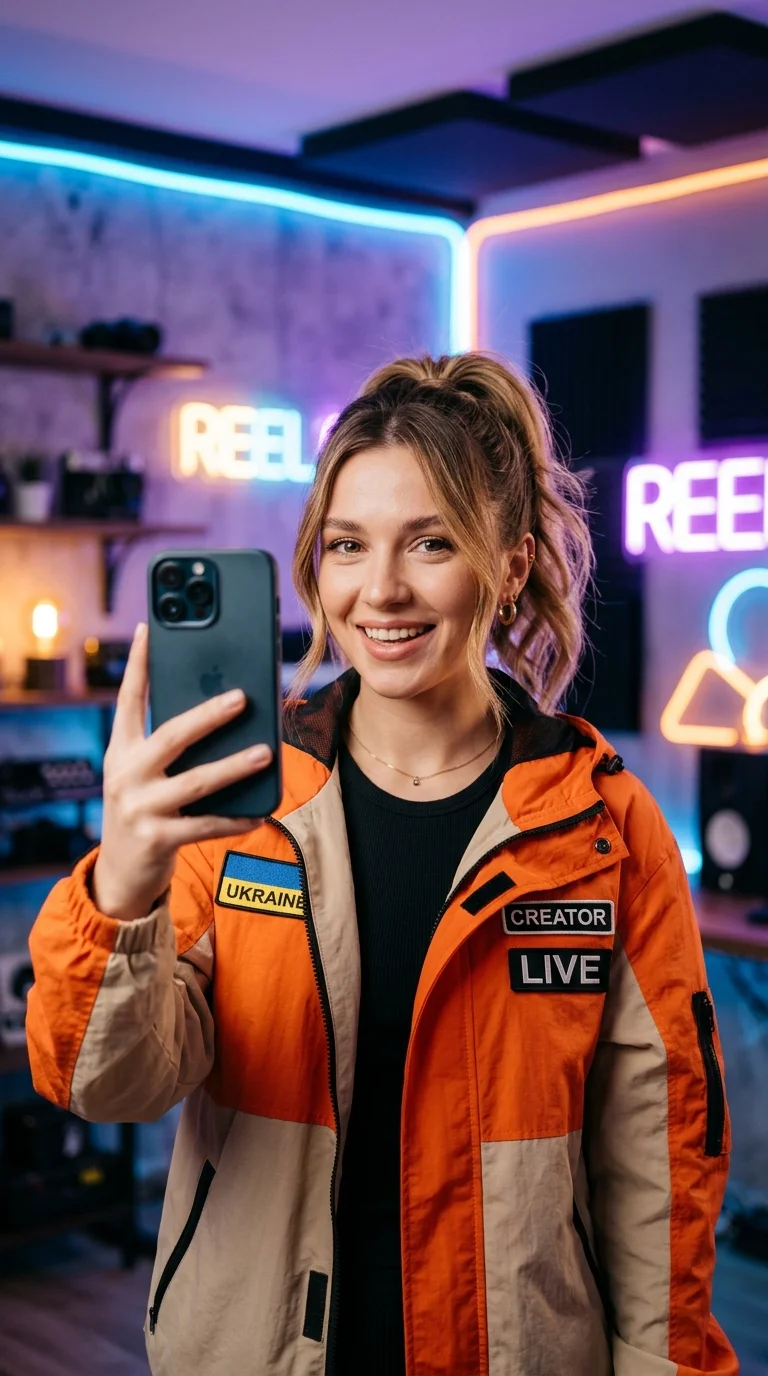
Scenario 3: UGC & Creator Talking Head
When filming talking-head UGC or selfie Reels, hold your smartphone slightly higher than eye level. This ensures your microphone, phone frame, and hand gestures don't get smothered by the bottom username and audio bar.
The 4:5 and 1:1 Profile Crop Trap Explained
One of the biggest mistakes creators make is designing only for the full-screen 9:16 view. Instagram displays your Reel in three separate aspect ratios across the app:
Full-screen vertical immersion. Full video is visible, but overlaid by the top header, right interaction rail, and bottom caption gradient.
Instagram crops 285px off the top and 285px off the bottom. If your video title is at the very top, home feed viewers will only see half of it.
Square thumbnail view. Instagram crops 420px off both the top and bottom. Set your custom Reel cover so your face sits directly in the center square.
The "Golden Center Box" for Subtitles & Text Hooks
More than 70% of Instagram users watch Reels with sound muted while commuting, in public, or at work. Speech-to-text captions are essential for retention, but placing them in the wrong spot ruins readability.
The Golden Subtitle Formula
Above the 420px caption gradient, below the central eye line.
Short, punchy bursts prevent text extending into the right action icons.
Bold sans-serif (Montserrat, The Bold Font) with a solid black outline or background pill.
Safe Zone Setup for CapCut, Premiere & DaVinci
Set up safe zone overlays directly in your video editing software so you never have to guess during post-production:
CapCut (Mobile & Desktop)
Most Popular1. Open CapCut and create a 9:16 project (1080 × 1920).
2. When placing text or auto-captions, tap "Text" > toggle "Safe Zone" guides in the canvas settings.
3. Alternatively, download our transparent PNG overlay from our Reels Safe Zone Tool and place it as an Overlay track on top of your timeline. Lock the track, lower opacity to 50%, and delete it right before final export.
Adobe Premiere Pro
Pro Editors1. Click the wrench icon in the Program Monitor > select "Safe Margins".
2. Go to Preferences > Playback > set Title Safe Area to Top: 11.5%, Bottom: 21.8%, and Right: 20%.
3. Use the Essential Graphics panel to snap captions directly to the customized title safe boundary.
DaVinci Resolve 19
Color Grading & Hollywood1. Go to View > Safe Area > check On.
2. Under Project Settings > Master Settings > Safe Area Guides, configure custom 4:5 center boundary and vertical title margins.
3. Enable Output Blanking if testing letterbox framing.
7 Common Safe Zone Mistakes That Tank Engagement
Subtitles Buried Beneath the Audio Track
Placing automatic subtitles at the very bottom edge. When Instagram renders your caption text and audio pill, the text becomes completely illegible.
Call-to-Action Blocked by Like Buttons
Placing "Tap Link in Bio" or promotional coupon codes along the right edge. The Like heart and Share arrow sit directly on top of the text.
Model Head Chopped Off in 4:5 Feed
Framing your model's head too high in the 9:16 frame. When appearing in the home feed, 285px are cut off and the model looks decapitated.
Dynamic Island / Notch Collision
Placing vital headline hooks in the top 100px. On modern iPhones (14 Pro to 16 Pro), the black Dynamic Island physically hides the letters.
Preview Your Reel in Our Safe Zone Overlay Tool
Upload your MP4/MOV video or static graphic directly into our browser tool. Toggle native Instagram overlays, check the 4:5 feed crop, and download the transparent 1080x1920 PNG template for your video editor.
How to Use the Instagram Reels Safe Zone
Keep text within the 1080 × 1420 px safe area
Ensure all hooks, speech captions, stickers, and logos sit at least 220px below the top edge and 420px above the bottom edge.
Leave a 220px right-hand safety buffer
Keep important visual elements at least 220 pixels away from the right screen border to avoid collision with the Like, Comment, and Share buttons.
Align primary subjects for the 4:5 feed preview
Position your subject’s face and primary action within the central 1080 × 1350 pixel boundary so nothing gets amputated when users scroll their profile feed.
Preview with an interactive overlay template
Load your video or export into our free in-browser safe zone checker to inspect native UI cutoffs before hitting publish.